
How to set up SCIM provisioning
To set up SCIM provisioning do the following:
1) Get the SCIM token from the Organization page: https://app.draftpilot.ai/organization-settings
(If you don't have access to this page, please contact us at support@draftpilot.ai and we will give you access)
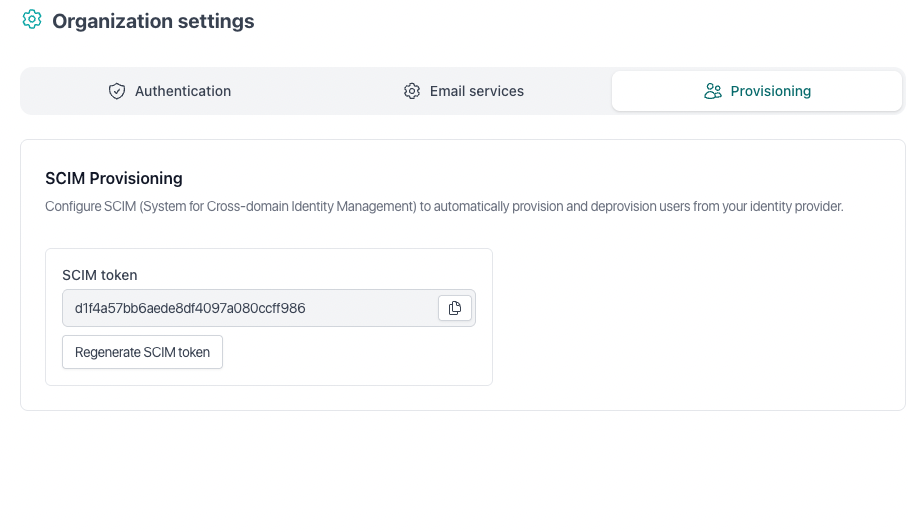
2) Create an Enterprise Application in Azure AD
Go to portal.azure.com and then > Azure Active Directory
Click "Enterprise applications"
Click "New application"
Click "Create your own application"
Name it (e.g., "DraftPilot provisioning”)
Select "Integrate any other application you don't find in the gallery"
3) Configure provisioning:
In the new Enterprise application, go to "Provisioning"
Then click New configuration
Change "Provisioning Mode" to "Automatic"
Under "Admin Credentials", enter:
Tenant URL: https://api.draftpilot.ai/v1/scim
Secret Token: [SECRET TOKEN PROVIDED BY DRAFTPILOT IN THE FIRST STEP]
Click Test connection to see if it works, and then "Create"
4) Test provisioning
We always suggest you test it, you can add a user to this Azure AD group.
Click Provision on demand
Go to https://app.draftpilot.ai/users to ensure the new account has been created